Test, compare, document, and report cable connections.
This guide explains how to connect the CCT-01 tester, compare the current cable against a learned or documented connection, save connection files, generate test reports, and use the tester display.
Before You Start
Browser
Use a Web Serial compatible browser such as Chrome or Microsoft Edge on desktop.
Connection
Connect the physical CCT-01 tester to the computer using USB. Authorize the serial port when the browser asks.
Serial Settings
The app uses fixed settings: 115200 bps, 8 data bits, 1 stop bit, no parity, no hardware flow.
Quick Start
-
Open the software.
Click Open CCT-01 Software or load the software page from your website. -
Click Disconnected.
Plug in the physical CCT-01, click the connection button, then select the CCT-01 serial port when the browser asks. -
Let the app read the learned connection.
When the tester first connects, the software reads the learned connection from the CCT-01 device. -
Insert the cable under test.
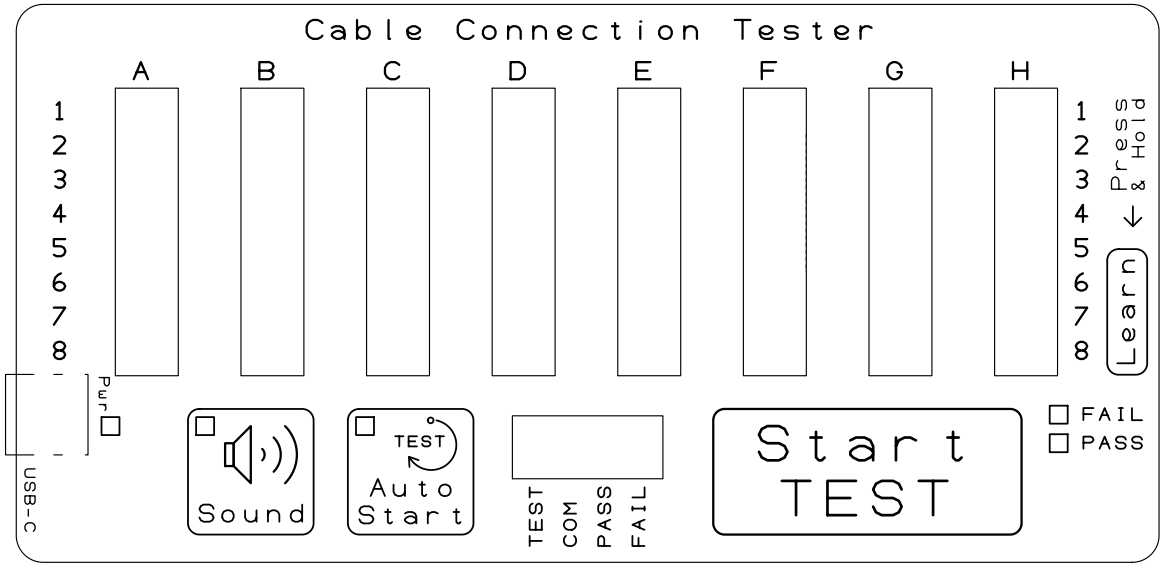
Place the cable in the CCT-01 tester and click the Start TEST area in Tester View, or press Spacebar. -
Review the result.
The visual display and report section show pass, fail, wrong connections, and missing connections. -
Download the report.
Click Download Test Report or press F12, enter the cable serial number, then print or save the A4 PDF report.
Display Views
Tester View
Shows the CCT-01 front panel with 64 connector cells arranged as A1 to H8. This is the main operator view.
Map View
Shows a matrix map of every pin-to-pin relationship. Use it when you need to inspect exact row and column connections.
Console View
Shows printable device messages. Keyboard input is available only in Console View.
Visual Result Legend
How to read the display
- If the blue square lands on a learned or documented connection cell, that connection is correct.
- If the blue square lands where there is no learned or documented connection cell, that connection is wrong.
- If a learned or documented connection cell has no blue square, that connection is missing.
- Fail messages use a red square marker to match the red boxes on the tester display.
Keyboard Shortcuts
Master Cable Documentation
Download Matrix CSV
The Download button exports a 64 by 64 master connection matrix. Rows and columns are labeled A1 through H8.
@ means a master connection, . means same pin, and - means no connection.
Upload Profile
Use Upload to load a Google Sheet export or CSV profile. This allows documented cable wiring to be used as the master reference.
PDF Report
-
Click Export Report or press F4.
The software first asks for the Cable Serial Number or report title. -
Enter the serial number.
This value appears on the report and is also represented as a barcode. Leaving it blank is allowed. -
Review the report preview.
The preview includes the virtual tester, current and master layers, pass/fail status, and all wrong or missing connection messages. -
Print or save as PDF.
Use the browser print dialog to print to paper or choose Save as PDF.
Troubleshooting
Cannot Connect
Use Chrome or Edge. Click Connect first, then plug in the CCT-01 and select the newly discovered serial port.
No Device Response
Disconnect and reconnect the CCT-01. Check the USB cable and confirm the device is powered.
Report Missing Barcode
The app uses an SVG barcode so it should print normally. If it is still missing, try saving as PDF from Chrome or Edge.
Keyboard Shortcuts
Connection Files
Save Learned Connection
The Save button creates a CCT CSV connection file from the learned connection stored in the tester.
The file starts with CCT-FORMAT-2026-06, includes the date and cable name, then lists terminal definitions and connection rows.
Load Documented Connection
Choose File under Load Connection from to load a documented connection CSV. The app uses the file connection data as the reference layer.
If the file contains connector names and pin numbers, the tooltips and report show the user-defined names below the CCT-01 terminal IDs.
The Connection box shows the loaded cable name and file name using the documented connection color.
CSV File Format
| Row Type | Meaning |
|---|---|
| CCT-FORMAT-2026-06 | Identifies the file as a CCT-01 cable connection record. |
| Date: | Date the file was created, using YYYY-MM-DD format. |
| Cable Name: | User-defined cable name shown in the software and report. |
| define: | Maps a CCT-01 terminal ID to a connector ID and pin number, for example A1, RJ45, 1. |
| connect: | Lists terminals that are electrically connected. Terminals in the same row are treated as connected together. |
Test Report
-
Run a test.
Click the Start TEST area on the tester image or press Spacebar. -
Check the report area.
The report appears when both the Current layer and the Learned or Documented layer are displayed. -
Click Download Test Report or press F12.
The software first asks for the Cable Serial Number or report title. -
Review the A4 preview.
The preview includes the tester display, pass/fail status, barcode, terminal names, and wrong or missing connection messages. -
Print or save as PDF.
Use the browser print dialog to print to paper or choose Save as PDF.
Demonstration Mode
Pass Demo
Open ?demo=pass to see a passing test with fake connection data.
Fail Demo
Open ?demo=fail to see wrong and missing connections, highlighted cells, tooltips, and report messages.
Troubleshooting
Cannot Connect
Use Chrome or Edge. Plug in the CCT-01, click Disconnected, then select the CCT-01 serial port. The app no longer auto-connects.
No Device Response
Disconnect and reconnect the CCT-01. Check the USB cable and confirm the device is powered.
No Report Appears
Show both layers: Current plus Learned or Documented. The report is hidden when one of the two comparison layers is turned off.
Port Still Looks Paired
Click Connected to manually disconnect. The app closes the serial port and asks the browser to forget the port authorization before the next connection.